



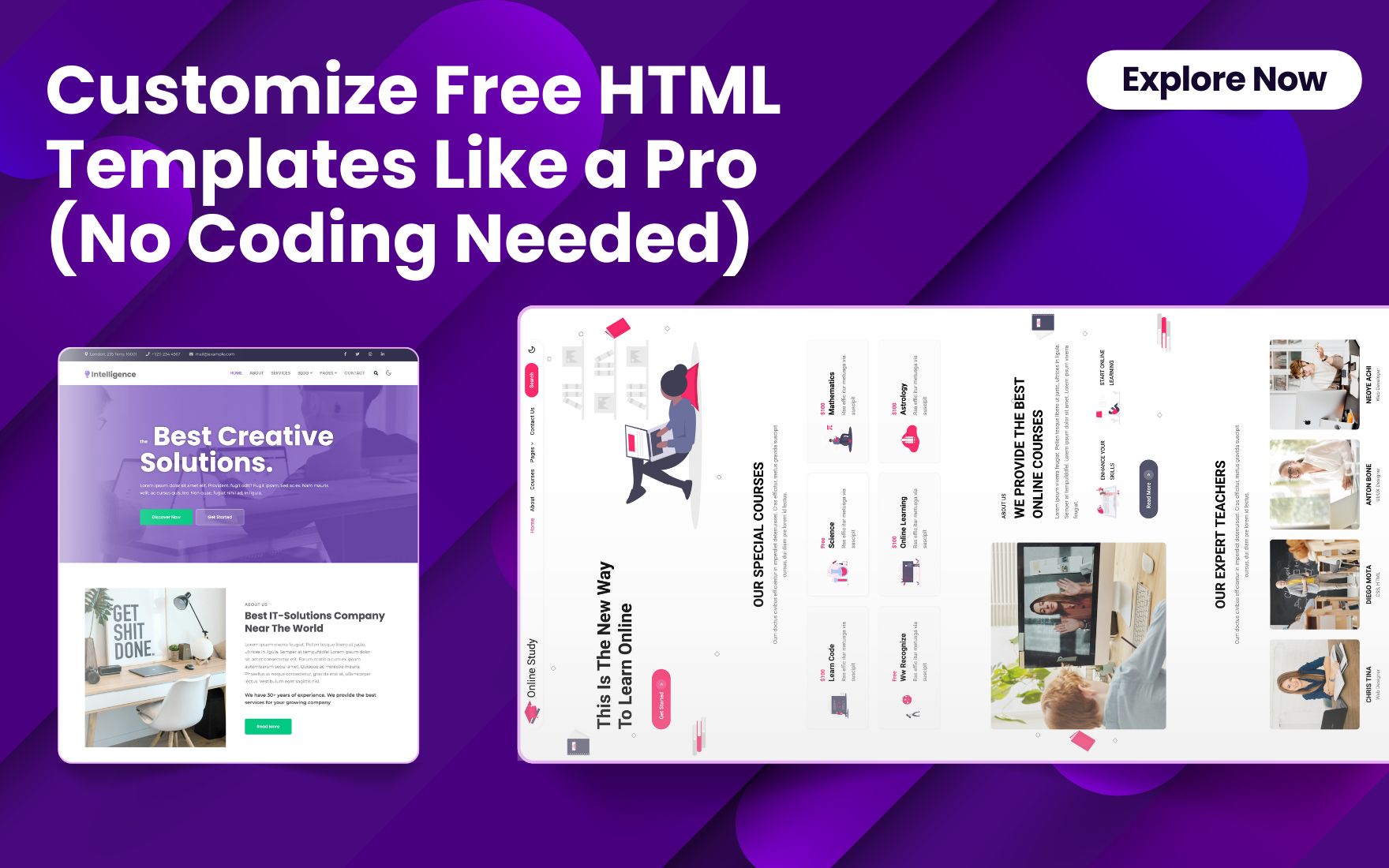
How to Customise Free HTML Templates Like a Pro (No Coding Needed)
Meta Description:
Customize free HTML templates like a pro—no coding needed! Use drag-and-drop tools and design tricks to launch your site fast and beautifully.
Launching a website can seem intimidating, especially if you’re not a developer. But thanks to modern Templates, you don’t need to know code to build a stunning website. Whether you’re a small business, a freelancer, or just starting as a beginner, using free HTML templates can help you get your website live quickly and professionally.
Let’s walk you through exactly how to customize free templates like a pro—without touching a single line of code.
Why Use Templates to Build Your Website?
Templates are ready-made layouts that help you create a website fast. Platforms like W3Layouts offer a wide variety of free templates for different industries—e-commerce, portfolios, blogs, restaurants, and more.
Instead of designing from scratch, you choose a layout, update the content, and personalize the design. This saves time, money, and technical stress.
Step 1: Choose the Right Free HTML Template
Start by selecting a template that fits your brand or business. Consider the layout, color scheme, and features:
- Do you need a contact form?
- Is a gallery important?
- Do you want a blog section?
Explore this collection of free HTML templates to find one that matches your needs.
Step 2: Use a Visual Editor to Customize
No coding? No problem.
Many templates from W3Layouts are compatible with drag-and-drop editors like:
- Pingendo
- Bootstrap Studio
- Mobirise
- Editor X (for web-based work)
You can upload your template into these tools and then:
- Edit text just like you would in a Word document
- Replace images with your own
- Move sections around visually
These tools let you work in a what-you-see-is-what-you-get (WYSIWYG) environment—no HTML knowledge required.
Step 3: Add Your Own Branding
To make your site stand out, update the template with your brand’s unique identity.
Here’s how:
- Replace placeholder logos with your brand logo
- Use your brand colors and fonts
- Update button styles to match your theme
- Add personalized headlines and CTAs (Call-to-Actions)
Customizing even a free template with your branding can make it look like a premium design.
Step 4: Replace Images and Icons
Stock images in templates are just for demonstration. Replace them with:
- Product photos
- Team images
- Lifestyle shots
Free tools like Canva or Unsplash can help you create or find high-quality visuals. Also, update icons using free resources like Font Awesome or Flaticon.
[Use alt text that includes your focus keyword “Templates” on each image for SEO benefit]
Step 5: Tweak the Layout with Built-in Settings
Even if you’re using a free template, you can still customize layout elements like:
- Spacing (padding/margin)
- Section order
- Backgrounds and overlays
- Animations and transitions
Most drag-and-drop builders include these options in a side panel, letting you control how your content appears across devices.
Step 6: Add and Rearrange Sections
Want to remove a testimonial block? Add a pricing table? Highlight a video?
Most HTML templates are modular, so you can:
- Remove sections you don’t need
- Duplicate sections like FAQs or Services
- Drag sections into a new order
This flexibility helps you craft a tailor-made layout even if you’re starting from a shared template.
Step 7: Optimize for SEO and Speed
Templates from W3Layouts are built with SEO in mind, but you should still:
- Use your focus keyword (“Templates”) in your headings, titles, and alt text
- Add meta descriptions under 160 characters
- Compress images using TinyPNG for faster load times
You can also internally link to other templates or blog articles to improve user navigation and time on site.
Step 8: Preview and Test Responsiveness
Before going live, preview your site on different screen sizes—mobile, tablet, desktop.
Make sure:
- Menus work
- Text is readable
- Buttons are easy to click
- Images scale correctly
Most W3Layouts templates are responsive by default, but always double-check!
Step 9: Publish Your Website
Once you’re happy with the customizations:
- Export your site from your visual editor
- Host it using a platform like GitHub Pages, Netlify, or your own web hosting
- Use a custom domain to make it official
And that’s it! A professional, custom site—without ever writing a single line of code.
Final Thoughts: Templates Are the Smart Way to Build
Templates offer a fast, affordable, and flexible way to build a modern website—without hiring a developer. With the right customization tools and some creative input, you can turn any free HTML template into a one-of-a-kind, branded site that gets results.
Ready to get started?
Browse W3Layouts’ collection of free and premium templates and start customizing today—no coding required.